Track Your Orders
See where every order stands and drill into the details when you need them.
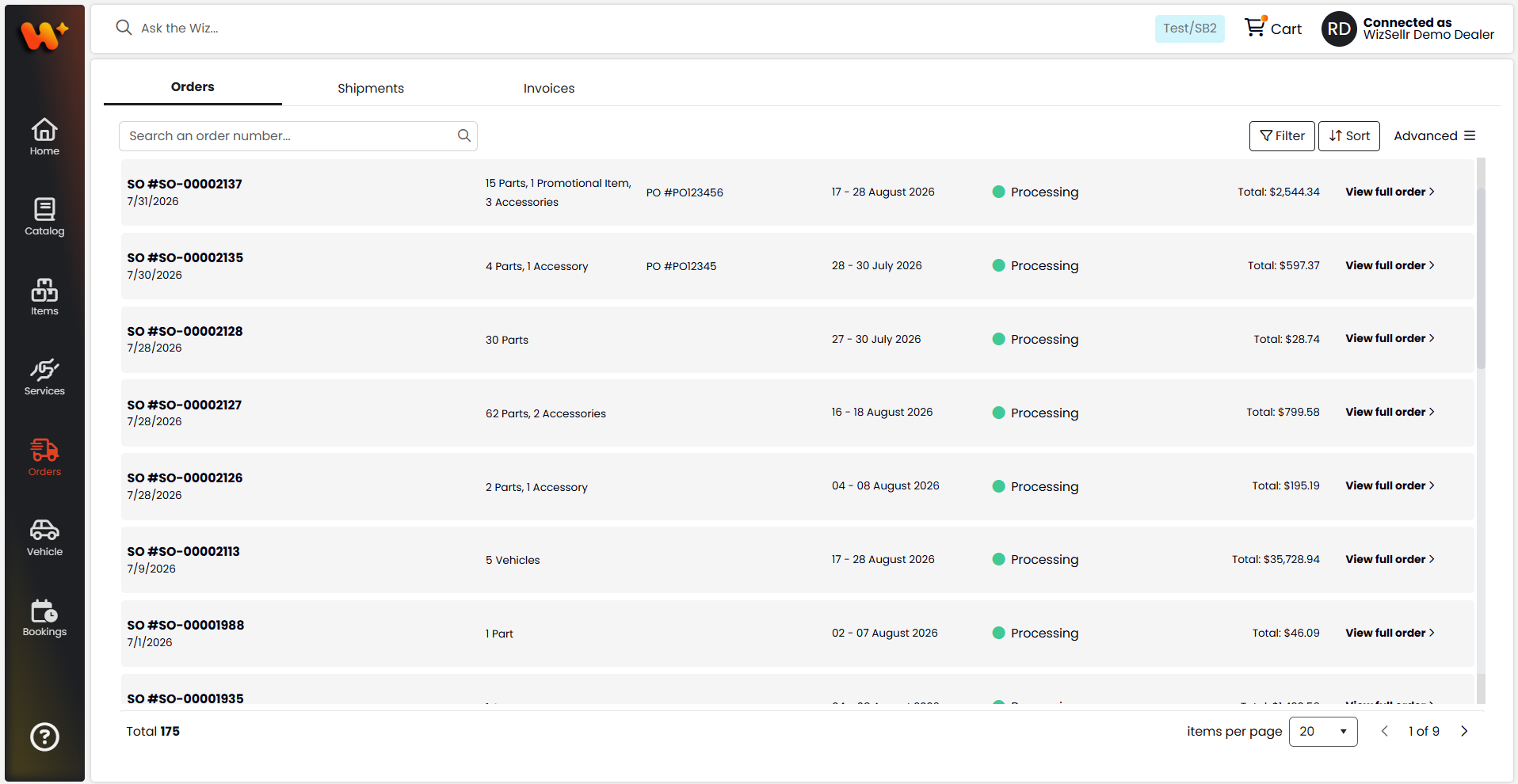
What you'll learn
- Searching, filtering (by type and status), and sorting your orders
- Reading order status and ETA
- Opening full order details (ordered, back-ordered, shipped, invoiced)
Before you start
- Open Orders from the main menu. The Orders tab opens by default, alongside the Shipments and Invoices tabs.
Steps
- In the search box, type an order number (Search an order number...) to find a specific order.
- To narrow the list, click Filter:
- Select My orders to show only the orders you placed.
- Under Order type, pick a type to show only those orders, or All types to show everything.
- Under Order status, pick a status, or All statuses to show every status.
- To change the order of the list, click the sort menu and choose By most recent, By status priority, or By status A-Z.
- Read each order card: the SO number and date, the PO number, the ETA date range, the status, and the Total.
- Click View full order to open the order details.
- In the details, review Sold to, Ship to, Payment terms, Purchase order, and Comment, plus the summary totals (Subtotal, Shipping, Promotions, Taxes, Total).
- On the Details tab, check each item's Ordered, Back ordered, Shipped, and Invoiced quantities. Click a Shipped or Invoiced figure to jump to the matching Shipments or Invoices tab.
- To export or download documents, open the Advanced menu and choose Export items, Download invoices, or Download shipments.
Good to know
- Order status can be Pending, Processing, Cancelled, or Closed.
- A cancelled order shows an on-hold notice asking you to contact us; if an order may have discrepancies, a warning with a contact link appears.
- Orders placed by a team member show by and the employee's name.
- Use Export all in the Advanced menu on the list to export every order at once.
- The download icon on an order card or the Download file button in the details appears only when a document is available.