Access Invoices
Find the invoices linked to your orders and shipments, then open or download their PDF.
What you'll learn
- Searching, filtering, and sorting invoices
- Reading invoice details and payment terms
- Downloading one invoice PDF, or every invoice on the page at once
- Which permissions you need to download invoices
Before you start
- Open Orders from the main menu, then select the Invoices tab.
- To download invoice PDFs, your permissions must include both Can print invoices and Show prices. If the download options are missing, ask your dealer admin to grant them (see Permissions).
Steps
Find an invoice:
- In the search box, type an invoice number (Search an invoice number...) to find a specific invoice.
- To narrow the list, click Filter:
- Choose Date range to show only invoices from a period.
- Under Invoice type, pick a type to show only those invoices, or All types to show everything.
- To reorder the list, use the sort menu (Newly added, Oldest added, Invoice number A-Z, Invoice Number Z-A).
- On each invoice card, read the invoice number, the invoice date, the item summary, and the Total.
Review an invoice:
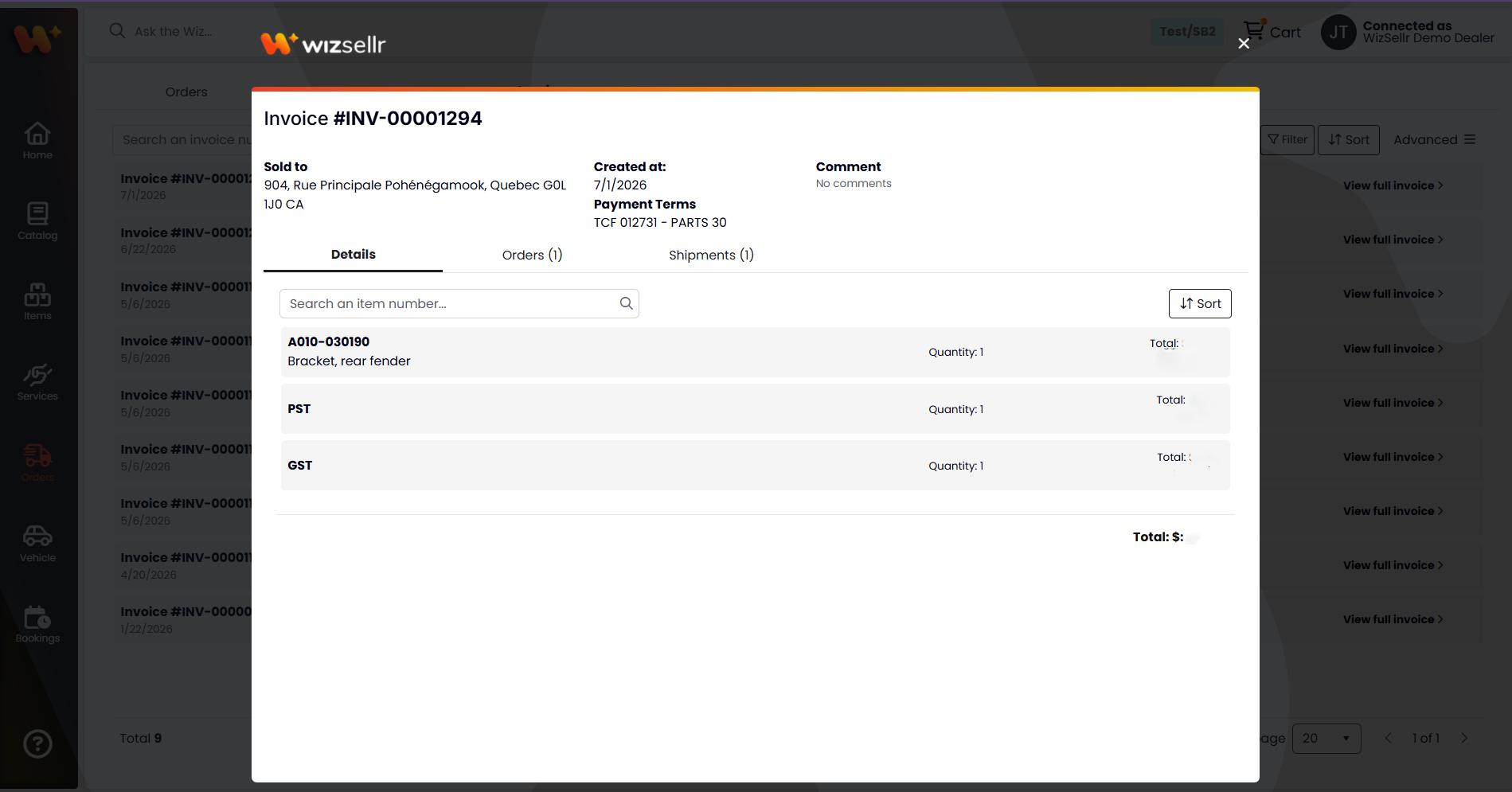
- Click View full invoice to open the invoice details.
- In the details, review Sold to, Created at, Payment Terms, and Comment, and open the Details, Orders, or Shipments tab to see linked records.
Download invoice PDFs:
- To download one invoice, click the download icon on its card, or click Download file at the top of the invoice details. The PDF opens in a new browser tab, where you can save or print it.
- To download several at once, open the Advanced menu on the list and choose Download invoices from page. Every invoice PDF on the current page is saved in a single .zip file.
Good to know
- Invoices are sorted by Invoice number A-Z by default.
- The invoice PDF is the official document from your distributor's billing system. It is attached when the invoice reaches Wizsellr and replaced with the latest version whenever the invoice is updated.
- The download icon, Download file, and Download invoices from page appear only if you have both the Can print invoices and Show prices permissions. Download icons also appear only for invoices whose PDF is available.
- Download invoices from page covers the current page of results only. Use search, filters, or the pager to choose which invoices you get. If no invoice on the page has a PDF, you see "We could not find any file to download". If some files fail, a "Some files could not be downloaded" message lists them with links to open each one.
- Export all, in the same Advanced menu, creates an Excel file of the invoice records (not the PDFs) that follows your current search and filters. It does not require the Can print invoices permission.