News & Documents
Use the News and Documents tabs to stay informed and quickly find the paperwork you need.
What you'll learn
- Reading the latest announcements on the News tab
- Filtering documents by category (for example Warranty Policy, Owner's Manual, Shop Manual, or Tech Tip)
- Searching, sorting, and opening a document from the Documents tab
Before you start
- From the left menu, open Home, then select the News or Documents tab at the top of the dashboard.
Steps
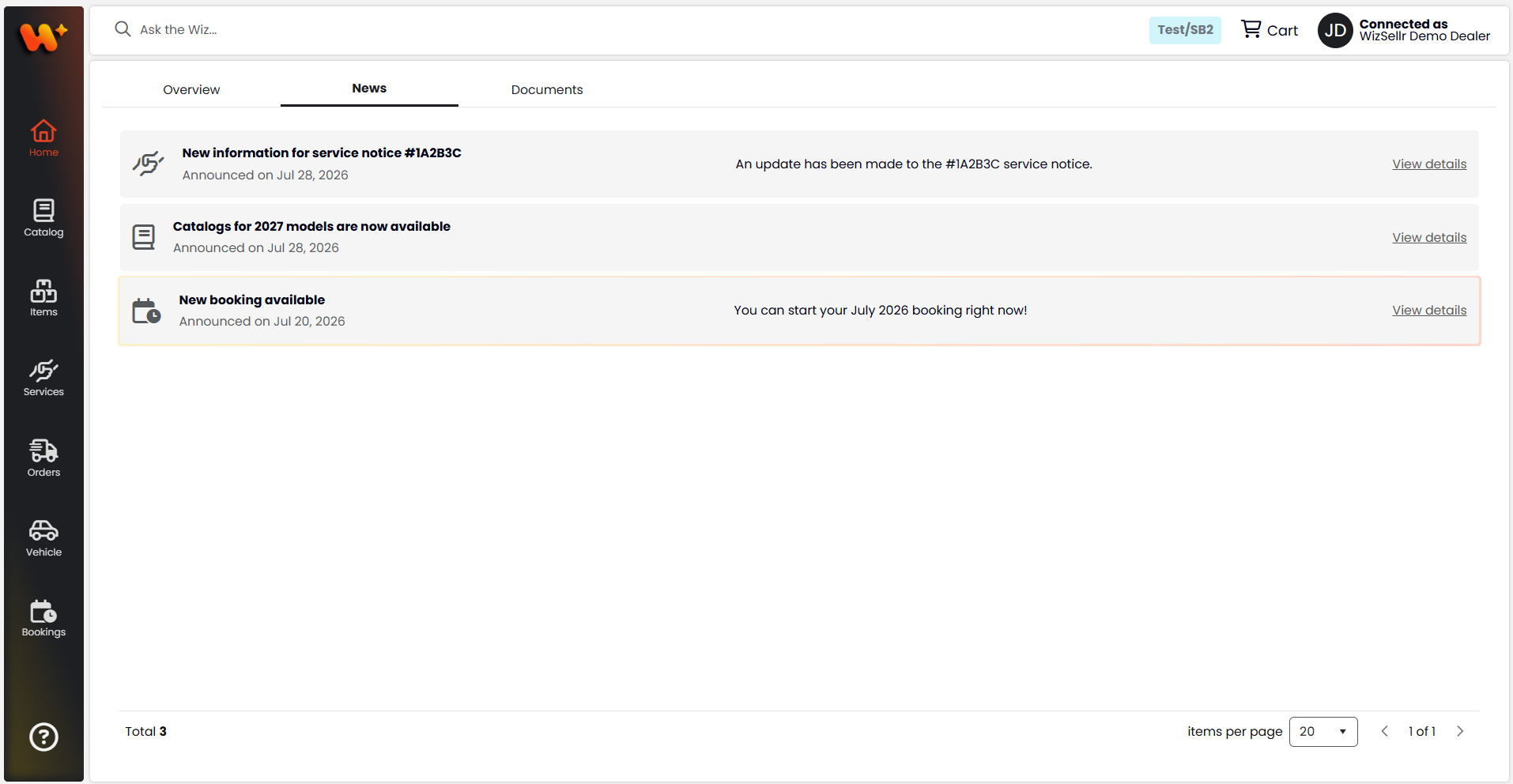
- Select the News tab. Each card shows the announcement title, an "Announced on" date, and its description.
- Where a card offers a View details link, select it to open the related service notice, booking, catalog, or external link.
- Use the pager at the bottom of the News tab to move through older announcements.
- Select the Documents tab.
- Type in the Search a file name... box to find a document by name.
- Select the filter and choose a category: All documents, or one of ADM, Assembly Guide, BG, Warranty Policy, MT, Owner's Manual, PDI, Preventive, Recall, Reference Manual, Replace, Service Diagrams, Delivery Service, Shop Manual, or Tech Tip.
- Use the sort menu to order results by Newly added, Oldest added, File name A-Z, or File name Z-A.
- Switch between list view and grid view with the two view buttons on the right of the toolbar. List view shows each document's file name and the date it was added; grid view shows a thumbnail for images and a file-type icon for everything else.
- Open a document: in list view, select View document; in grid view, select the document card.
Good to know
- Documents open in a new browser tab.
- The document library is published by your distributor and kept in sync automatically: new documents appear, and documents the distributor removes disappear, without any action on your part.
- If no documents match your search or filter, "There are no elements to display" appears. If your dealership has no documents at all, the tab shows "There are not documents to display" with a Contact us button instead.
- Grid view keeps loading more documents as you scroll; list view uses a pager.