Dashboard Overview
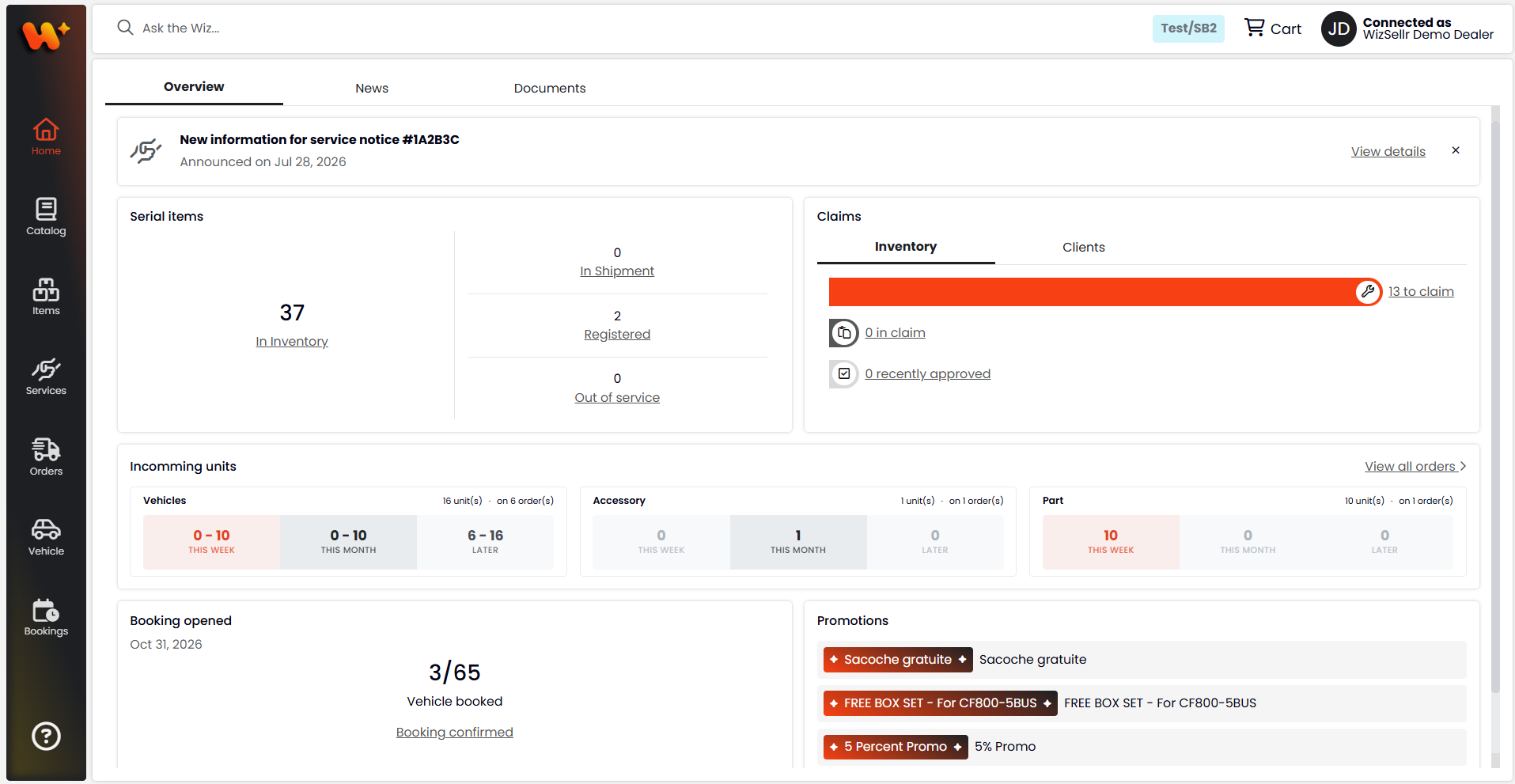
Take a guided tour of the home dashboard: vehicle inventory, claims, incoming products, bookings, and promotions all in one place.
What you'll learn
- Reading the Vehicles summary and opening a list from it
- Tracking Claims, Incoming products, and open bookings at a glance
- Seeing Currently available promotions and using View details to drill in
Before you start
- From the left menu, open Home to reach your dashboard. It opens on the Overview tab by default.
Steps
- Confirm you are on the Overview tab (it is selected automatically).
- Read the Vehicles widget: the In Inventory, In Shipment, Registered last month, and Out of service counts. Select any of these labels to open the matching list.
- Review the Claims widget. Switch between its Inventory vehicles and Registered vehicles tabs; each shows how many vehicles are affected by service notices, how many claims are ongoing, and how many were approved in the last week. Select a line to open the service notices or the claims list.
- If some claims are waiting on you, a "... claim(s) require your action" badge appears in the top-right corner of the Claims widget. Select it to open your claims list filtered on Action Required.
- Check the Incoming products widget. Each item type gets its own card showing the total number of units still to be delivered and how many orders they come from, then a breakdown of when they are expected: Late, this week, later this month, and later. Select View all orders in the widget header to open the Orders list.
- Look at the booking cards. Each open booking gets its own card, with the one closing soonest first. A card shows the booking's title, a status badge (Confirmed, Not confirmed, or Not opened), its end date with a countdown ("... day(s) left", or "Closes today"), and a progress bar per item type showing how many of the offered items you have booked ("... of ... booked"). Select Go to booking to open it.
- Scroll the Currently available promotions widget to see active promotions - each shows its promotion tag, a description, and the date it runs until - and use the pager to browse additional pages.
- If an announcement banner appears at the top, select View details to open the linked item, or select the close (X) button to dismiss it.
Good to know
- The Out of service count only shows when your dealership has that feature enabled.
- In Inventory counts the vehicles your dealership still holds - a vehicle leaves this count once it is registered to a customer. Registered last month counts vehicles registered to a customer during the past month.
- In Claims, Inventory vehicles covers vehicles still in your inventory and Registered vehicles covers vehicles already registered to customers. A vehicle counts as affected by service notices while it has no claim for that notice, or only rejected ones.
- In Incoming products, each unit is counted once, in the window where its estimated delivery ends. Late counts units whose estimated delivery date has already passed without them shipping.
- Every item type you have ordered before keeps its card even when nothing is on the way, so a card showing zeros means no pending deliveries rather than no history. Units on order that are not linked to an item type are grouped under Unknown.
- A booking card shows Not opened when a booking is available to your dealership but you have not started it yet. The countdown is highlighted during the last seven days before the booking closes.
- When there are no open bookings, the booking card shows "No booking is open right now."; when there are no promotions, the promotions widget shows "There are not promotions available in our records".
- The announcement banner's View details link only appears for announcements tied to a service notice, booking, catalog, or external link.