Find an Item & Add to Cart
Find a specific part or item inside a catalog section and add it straight to your cart.
What you'll learn
- Searching by item code or schema code
- Reading an item's details
- Adding an item to your cart
Before you start
- Open a catalog and select a section (see Browse catalogs). The section's items appear in the panel on the right.
Steps
- With a section selected, look at the item list on the right.
- In the item search box (Search an item code or schema code...), type an item code or schema code. The list filters as you type.
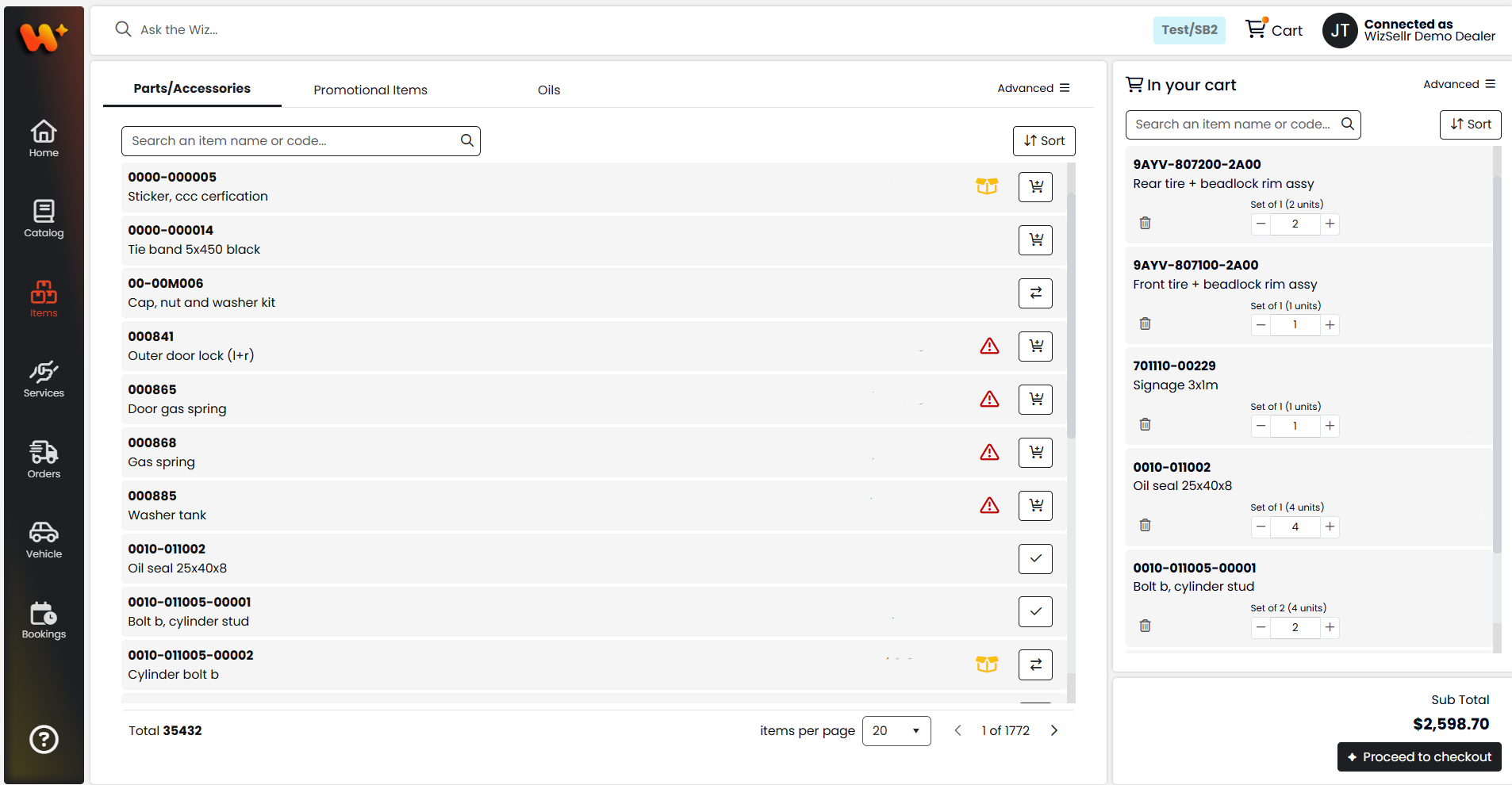
- Read each row: the schema code (position marker), the item code (or Unknown item if none), the item name, a x quantity badge when the item is used more than once, the unit price (marked /U), and the item's status icon.
- Click the item code or name to open its full details.
- To add the item, click its cart button. In the popover, the Set of line shows how many units each set contains. Use the minus and plus buttons to set the quantity, then click the confirm (plus) button.
- A success message like Item ABC123 added successfully. confirms the item is in your cart.
Good to know
- The status icon next to the price shows the item's availability (On order only, Out Of Stock, or Inactive). No icon means the item is available. Hover over the icon to read the status. See Browse items for what each icon looks like.
- If an item has been replaced, a swap control appears instead of the cart button so you can add the superseding item.
- The cart button is unavailable when the item has no price, when the item is Inactive, or when your account doesn't have the Can create orders permission.
- If your account doesn't have the Show prices permission, prices for restricted item types show N/A. You can still add those items to your cart.
- To change quantity later, reopen the popover; setting the quantity to 0 shows a trash button to remove the item from the cart.