Review Closed Bookings
Find past bookings after they close and trace them to the resulting sales orders.
What you'll learn
- Searching closed bookings by sales order number
- Opening a full booking
- Jumping to the related sales order
Before you start
- Open the Bookings area from the left menu and select the Closed bookings tab, the last tab across the top.
Steps
- On the Closed bookings tab, type a sales order number in the search box ("Search a sales order number..."). You can also reorder results with the sort menu (Most recent, Oldest item, Total (High to low), Total (Low to high)) or narrow them with the item type filter.
- On a booking card, review its close date ("End date ..."), the item type quantities, the total, and the sales order number ("Sales order: ...").
- Click View full booking to open the booking.
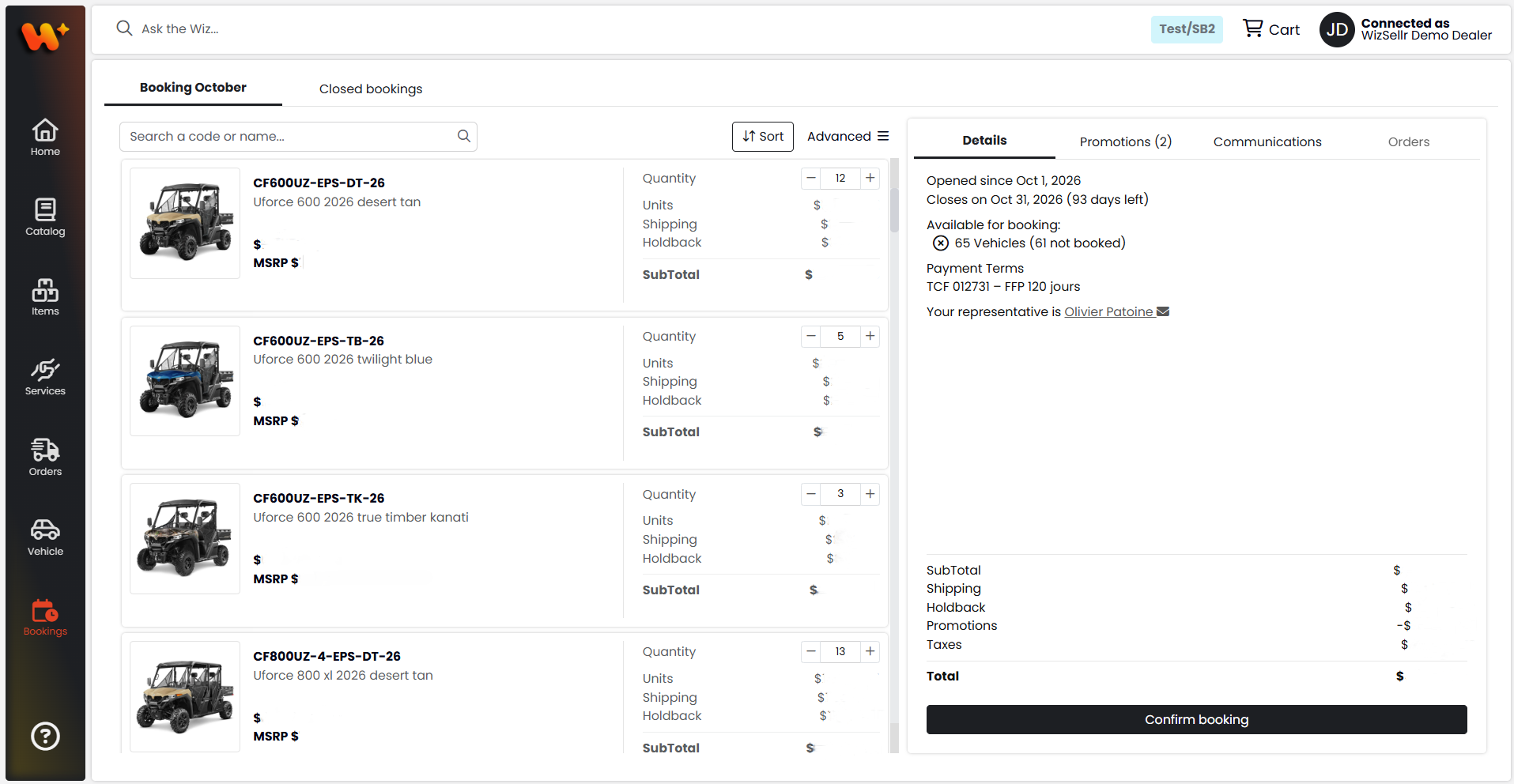
- In the Details panel, review what was booked (for example "12 vehicles booked") and the totals. Open the Orders tab and click View full order to open the related sales order.
- Use the back arrow at the top left to return to the Closed bookings list.
Good to know
- Closed bookings are read-only. You can review quantities, pricing, and totals but cannot change them.
- To download every closed booking as a spreadsheet, click Advanced, then Export all.
- A closed booking shows its sales order number only once a sales order exists for it; View full order opens that order in the Orders area.
- If none of your bookings has closed yet, the tab shows "There are no bookings available to display".
- If your account is not allowed to see prices for some item types, the affected amounts show N/A.