Book Items & Confirm
Add quantities to a booking, review pricing and promotions, and confirm it before the period closes.
What you'll learn
- Entering quantities and importing items
- Reviewing units, holdback, promotions, and totals
- Confirming (and if needed cancelling) the booking
Before you start
- Open the working booking's tab in Bookings. You must have opened it from a template first (see Open a booking).
- The booking must still be open (before its close date) and not yet confirmed, and you need permission to manage bookings.
Steps
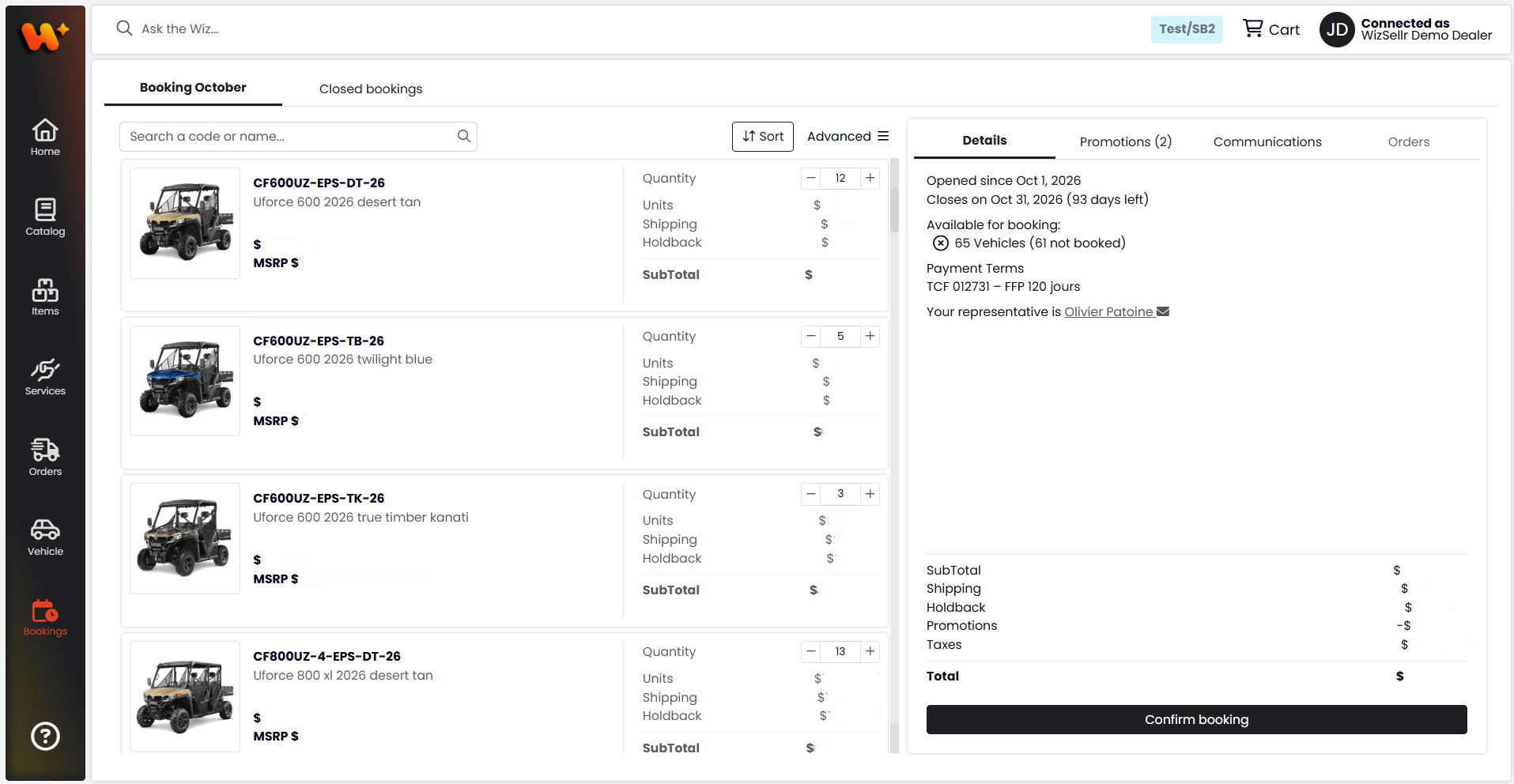
- In the item list on the left, find an item (use the search box, "Search a code or name") and set its Quantity using the field or the minus and plus buttons. Each item shows its Price and MSRP. Repeat for each item you want to book.
- After you change a quantity, that item group's amounts are flagged "Prices need recalculation", and in the Details panel the Confirm booking button is replaced by Recalculate booking.
- When you have finished entering quantities, click Recalculate booking. Amounts show Calculating... while the Units, Shipping, Holdback, promotions, and taxes are updated.
- In the Details panel, review the totals: Subtotal, Shipping, Holdback, Promotions (when any apply), Taxes, and Total. The Available for booking list marks an item type with a check once all of its items are booked; otherwise it shows how many are still "not booked".
- Open the Promotions tab (its title shows how many apply, for example Promotions (2)) to see the Applied promotions. Click View all promotions to see every promotion available for the booking.
- When the quantities are final and the prices are up to date, click Confirm booking.
- In the Do you wish to confirm the booking? dialog, read the note and click Confirm. The button then changes to Confirmed.
- To reopen the booking for changes, click Cancel confirmation, then click Confirm in the dialog. You can do this until the booking period ends.
Import or export items
- To load quantities from a spreadsheet, click Advanced, then Import items, drop your
.xlsxfile, and review the import report (each row shows a status, and mismatches or errors are flagged). An item that appears more than once in the file is rejected as a duplicate. After a successful import, click Recalculate booking to update the prices. - To download the current list, click Advanced, then Export items.
Good to know
- The Quantity fields and Import items option only appear while the booking is open, not confirmed, and not a template.
- You cannot confirm while prices need recalculation, or while items are still calculating or in error.
- If your account is not allowed to see prices for some item types, those prices, and the totals that include them, show N/A.
- Confirming lets the distributor turn the booking into an order after it closes. The confirmation can be cancelled any time until the close date.